
Android now automatically backs up Downloads folder to Google Drive
Summary
Android's new update will automatically back up your Downloads folder to Google Drive, but not other local files. It's off by default and saves static copies, not live syncs.
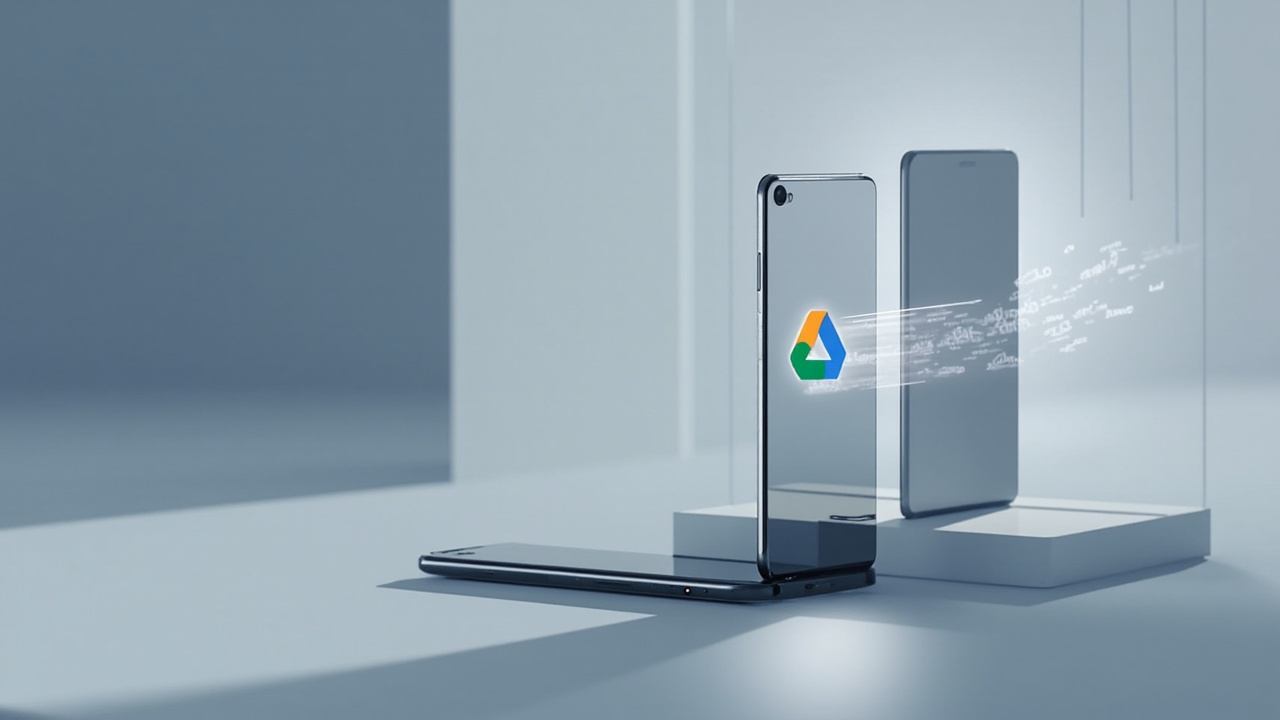
Android will now automatically back up your Downloads folder
Google is adding automatic backup for local files to Android. The new feature, part of the February Google Play Services update, will copy and upload the contents of your device's Downloads folder to Google Drive.
This marks a meaningful expansion of Android's backup system. Previously, users had to manually save files like PDFs and documents to the cloud to avoid losing them.
The limits of the new backup system
The feature has significant limitations. It only applies to files in your Downloads folder and does not cover your device's entire internal storage.
Backups are also static, not live syncs. If you edit a file in your Downloads folder, that change will not be automatically reflected in the Google Drive copy.
- Backups occur only to Google Drive.
- They happen occasionally, like when your phone is idle, charging, and on Wi-Fi.
- It does not create a continuous, two-way sync.
How Android backups work now
Android already automates backups for other types of data. Photos and videos are handled by Google Photos, while other device data goes to Google Drive.
The system backs up a wide array of information to Drive by default. This includes your call history, text messages, and most device settings.
Why you might want to manage this feature
For users without a backup plan, this is a useful safeguard. However, it could quickly consume your Google Drive storage if your Downloads folder is large.
This is especially important if you already pay for extra Drive capacity. Files like installers, invoices, and archived documents can take up significant space.
Thankfully, the feature is disabled by default. You must actively choose to turn it on.
How to enable Downloads folder backup
You can manage the setting from your device's system menu. The rollout is gradual, so it may not be available on all devices immediately.
To check, go to Settings > Google > Backup. From there, you can select the "Downloads" option to enable it.
The same menu lets you adjust backup preferences for photos, videos, and other device data.
Related Articles
Apple and Google launch tool to transfer data between iPhone and Android
Apple and Google have made it easier to switch between iPhone and Android, allowing seamless data transfer like photos and messages, reducing ecosystem lock-in.
Google Pixel Watch 3 hits record-low price of $170.67
The Google Pixel Watch 3 is on sale for a record-low price of $170.67. It's a great fitness-focused smartwatch for Android users, offering many features of the newer model at a much lower cost.
Stay in the loop
Get the best AI-curated news delivered to your inbox. No spam, unsubscribe anytime.